


Connecting to a Court Hearing via Zoom
Zoom hearings before the Court are done using the Zoom Webinar format. A Zoom account is not required.
Audience Members (Listen Only)
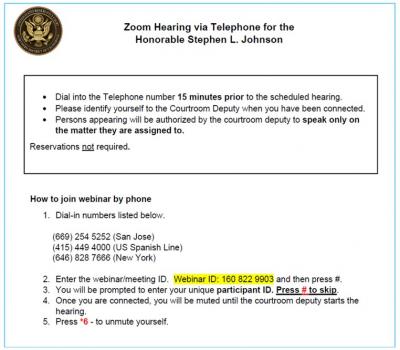
An audience member (a person not participating in the hearing, for example, a member of the press or public) may listen to the hearing by audio using the Zoom telephone number and Webinar ID posted on the hearing calendar.
Hearing Participants (Audio Only)
A hearing participant (for example, a party to a case such as a debtor or a creditor, an attorney representing a party, an interpreter, or a witness) may participate in a hearing by audio only (listen and speak) using the Zoom dial-in telephone number and Webinar ID posted on the hearing calendar, then then following the prompts.
Hearing Participants (Audio and Video)
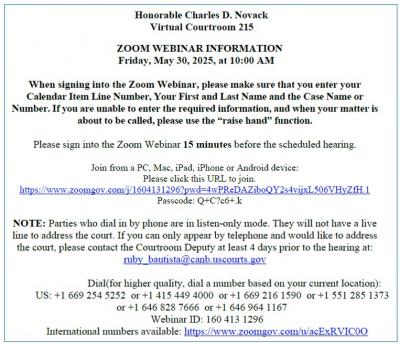
Before a hearing, a participant (for example, a party to a case such as a debtor or a creditor, an attorney representing a party, an interpreter, or a witness) will be provided a Zoom Webinar link and password via email by the judge's courtroom deputy. A hearing participant may use this link and password to connect to the hearing by video and audio.
Click on the hearing link to connect to a Zoom hearing from a PC, Mac, iPad, iPhone or Android device.
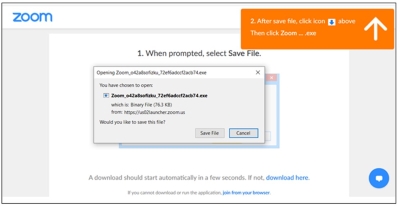
· Follow the prompts to save (download) and launch the Zoom file.
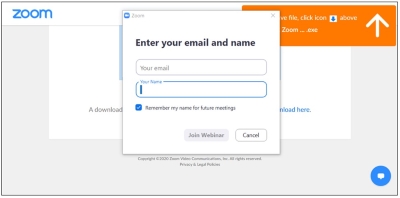
· Enter your email address and name. Select Join Webinar. If you receive a password prompt, enter the password specified for the hearing.
After Connecting to a Zoom Hearing
After connecting to the Zoom hearing, if naming instructions are posted on the screen follow the instructions to identify yourself for the courtroom deputy.
The hearing participant can initially see and hear the judge and courtroom deputy, but no one attending can see or hear the hearing participant. When it is time for a hearing participant to speak, the courtroom deputy will change the hearing participant's status. Hence, they become visible on screen and can be heard by the judge, the courtroom deputy, and all others attending the hearing.
NOTE : Information on how to connect to your scheduled hearing is located above in the Connecting to Your Hearing section.